

Verify a Product
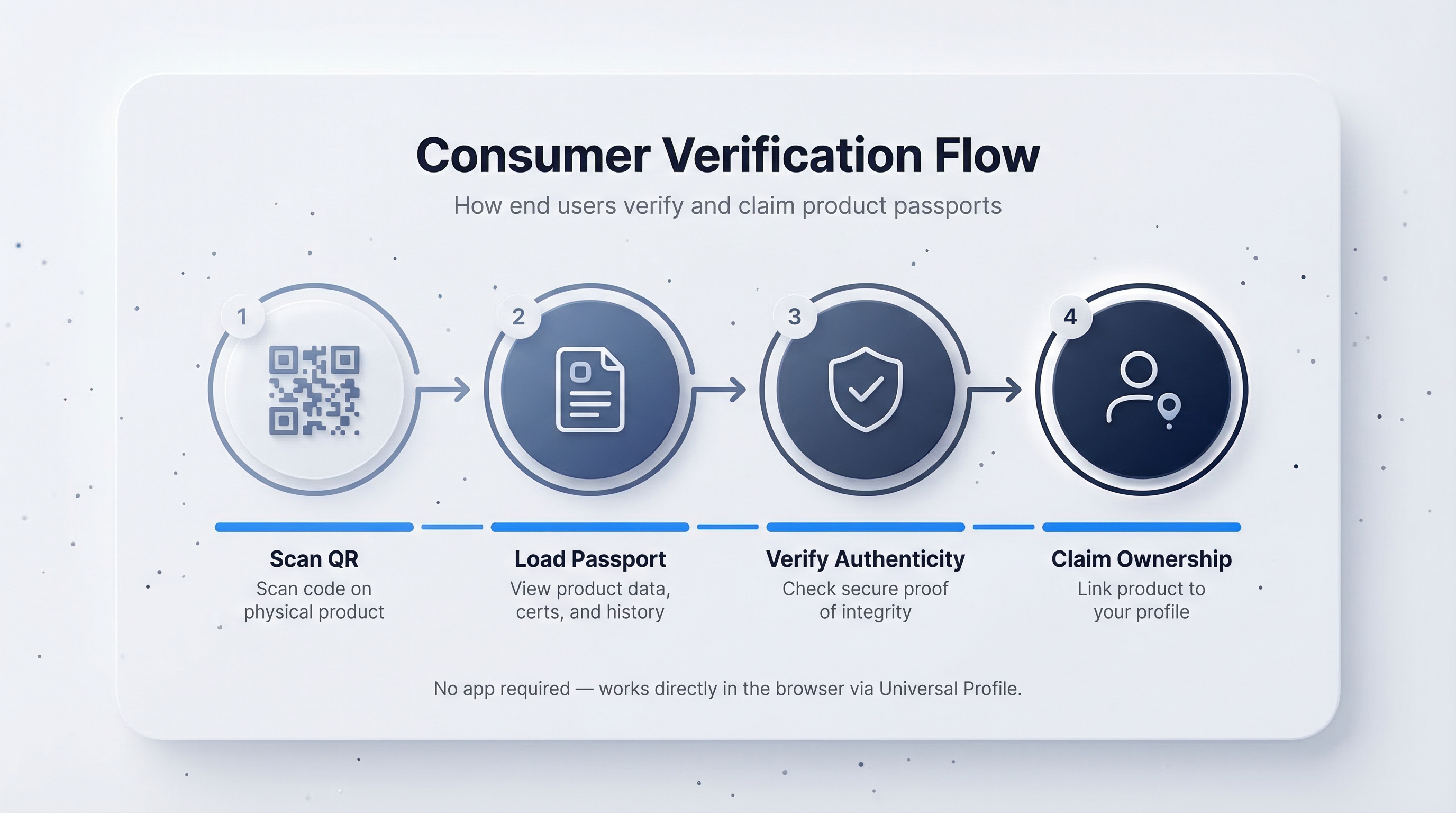
Anyone can verify a product's claims without creating an account or installing software: consumers, retailers, customs inspectors, journalists. This process — scanning, verifying, and optionally claiming — is called Scan-to-Sign. This guide explains what happens when someone scans a passport and what "verified" actually means.
The verification journey
A verifier typically starts from one of two entry points:
- Scanning a QR code on physical packaging, a hang tag, a shelf label, or a printed certificate.
- Clicking a link received via email, embedded on a website, or included in a shipping document.
Both paths lead to the same place: the Universal Goods verification page.
What the verification page shows
The verification page renders in seconds and requires no login. It displays:
- Product identity: the product image, name, and issuing organisation.
- Verification status: a prominent badge indicating whether the credential passed verification.
- Disclosed data sections: only the sections the issuer chose to share (e.g., Identification, Provenance, Circularity). Each section uses the same structured layout as the platform.
- Anchor timestamp: the date and time the batch was finalised on-chain.
- Issuer information: the organisation name and its Universal Profile address, which anyone can look up on a block explorer.
How verification works

When the page loads, the platform performs several checks in sequence:
- Signature validation: the passport is a JWT (JSON Web Token) signed by the issuing organisation's private key. The platform retrieves the organisation's public key from their Universal Profile and confirms the signature matches.
- Issuer resolution: the DID (Decentralized Identifier) in the credential is resolved to confirm it maps to a real Universal Profile on the blockchain.
- Integrity check: the data is compared against the signed original to ensure nothing has been altered since it was shared.
- Expiry check: if the credential includes an expiration date, the platform confirms it has not expired.
All checks happen client-side in the browser. The result is a mathematical proof that the data was signed by the stated issuer and has not been tampered with.
A green Verified badge means the credential is valid: it was signed by the claimed organisation and the data has not been modified. It does not mean Universal Goods has audited the truthfulness of the data itself. Verification proves authorship and integrity, not truthfulness.
Paste-a-credential verification
You can also verify a credential manually without a QR code or link:
- Navigate to the Verify page (accessible from the main navigation without logging in).
- Paste the raw credential JWT into the text field.
- Click Verify.
- The page performs the same cryptographic checks and displays the result.
This is useful for verifying credentials received outside Universal Goods, such as a JWT attached to an email or embedded in an API response.
Reading the raw credential
For technical users, the verification page includes an expandable Credential Details panel that shows:
This raw view is useful for auditors and developers who need to inspect the credential programmatically or cross-reference it with other systems.
Verification without an account
Verification works without any account or login.
- Consumers scanning a QR in a store get instant results.
- Customs officials can check credentials at scale without onboarding.
- Auditors can verify independently, without relying on the issuer.
The verification page is a standalone, public endpoint. No cookies, no tracking, no sign-up wall.
Troubleshooting
Next steps
Now that you understand both sides of the passport — sharing and verifying — learn how to build supply-chain relationships in Connect with Partners.