

Set Up Your Organisation
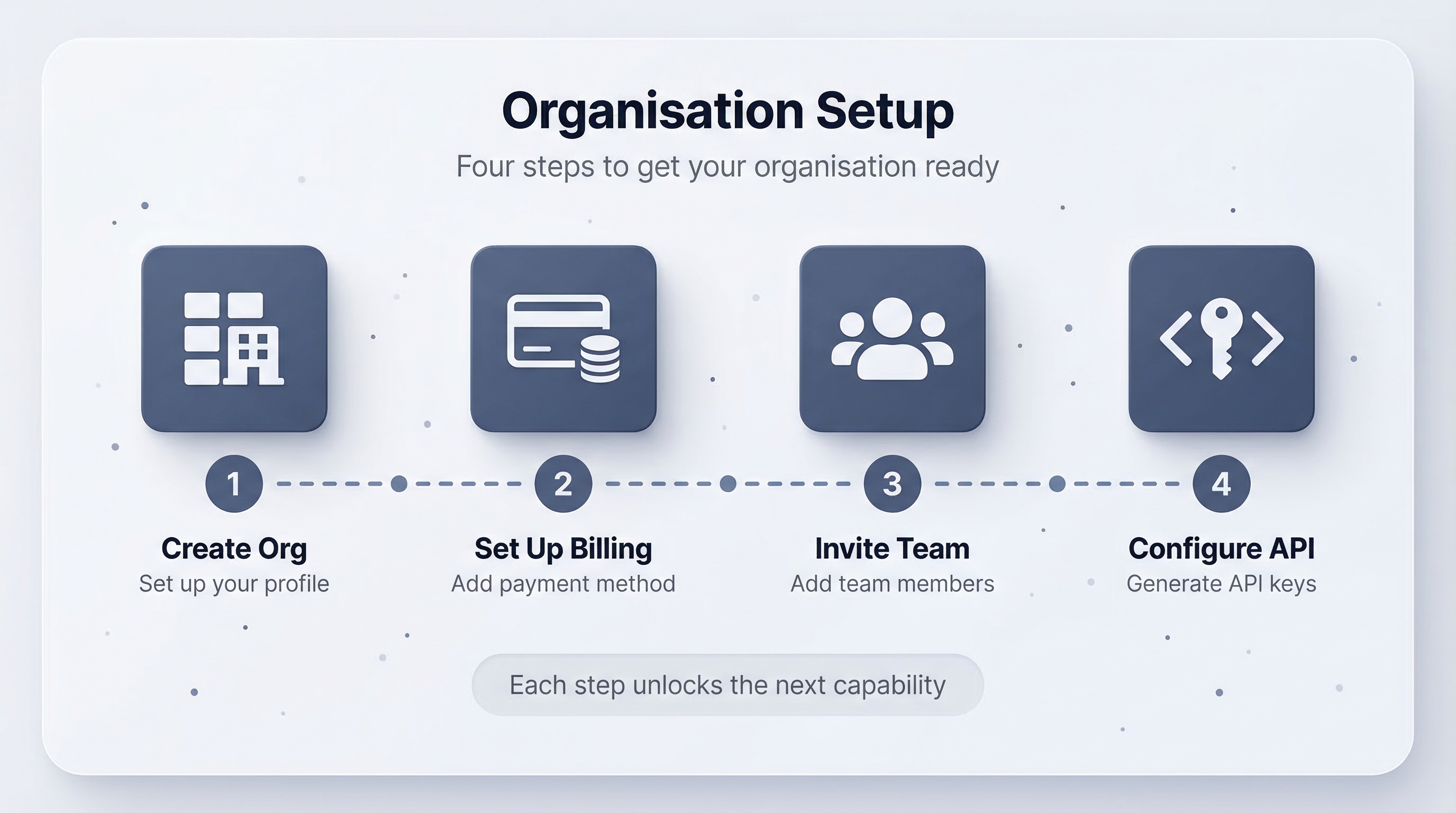
Your organisation is the top-level entity in Universal Goods. Every product, batch, connection, and transaction belongs to one. This guide covers creating an organisation, funding it, and getting your team on board.
Create your organisation
- Sign in to Universal Goods and click Create Organisation from the landing page.
- Enter your organisation name, slug, and a short description.
- Upload a logo. This appears on shared passports and in partner connections, so use something recognizable.
- Click Create. You are now the owner of the organisation.
After creation you land on the Dashboard, which shows a compliance snapshot, quick actions, and your team members card.
Understand your Universal Profile
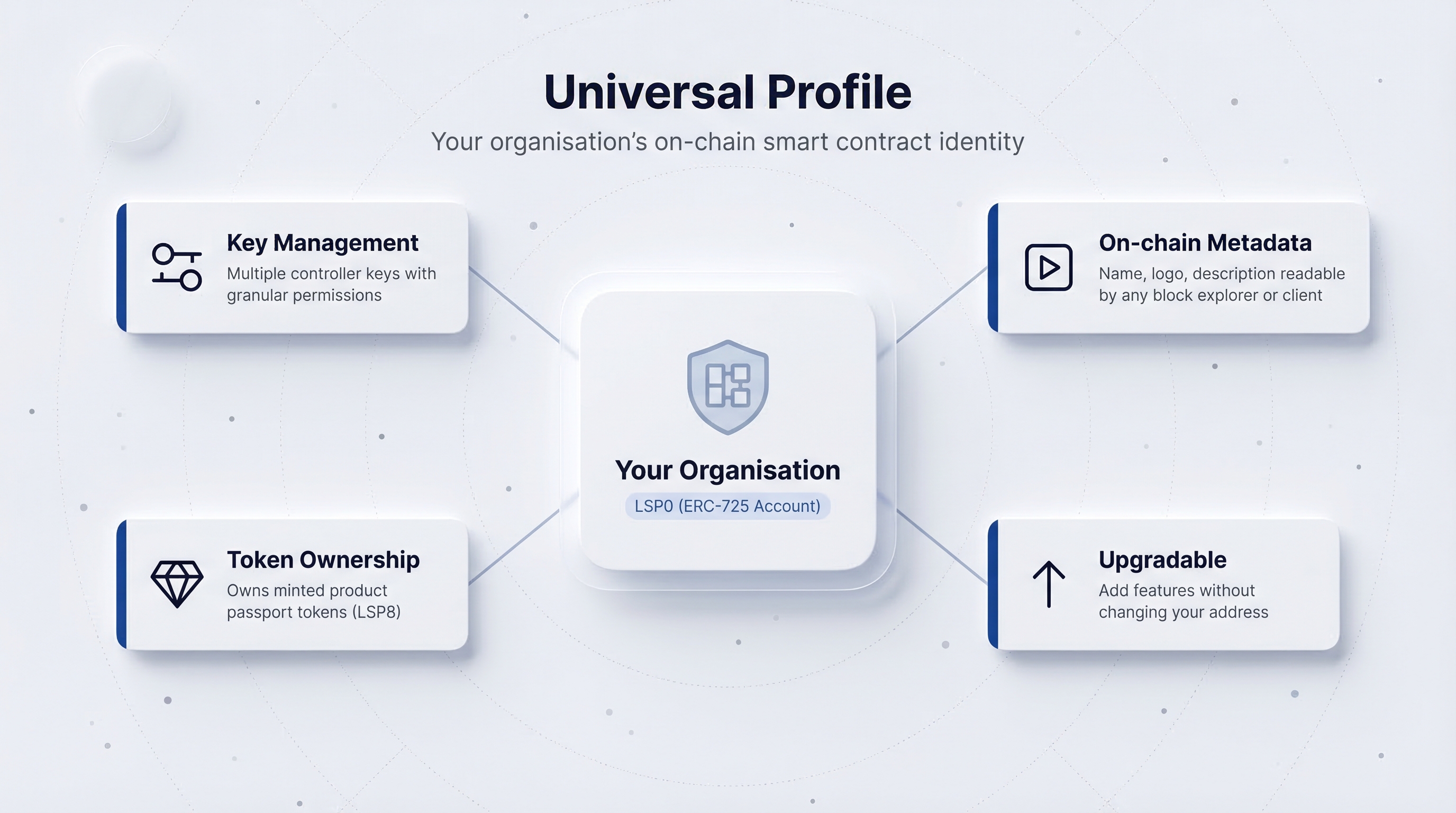
Every organisation on Universal Goods gets a Universal Profile — your organisation's verifiable on-chain identity. It holds your metadata, owns the tokens you mint, and signs every transaction you make.
Think of it as a digital identity that represents your company. Unlike a simple account address, a Universal Profile supports:
- Key management: multiple controllers with different permissions.
- On-chain metadata: your org name and logo are readable by any blockchain explorer.
- Upgradability: new features can be added without changing your address.
You can view your Universal Profile address on the Accounts page under the Universal Profile section.
Fund your accounts
Navigate to Accounts (/accounts) to see your accounts:
Every blockchain action (creating a product token, finalising a batch, transferring an item) costs a small amount of native token in gas. If your Universal Profile runs out of funds, these operations will fail. Fund it before you start creating products.
To add an external wallet, go to Accounts > Add Account and select from the wallet connector grid (MetaMask, WalletConnect, or manual address entry).
Invite team members
- Navigate to Settings > Team Members (
/settings). - Click Invite Member and enter their email address.
- Assign a role:
- Owner: full control, including billing and deleting the organisation.
- Admin: can manage products, connections, and settings, but cannot delete the org.
- Member: can create and edit products but cannot change settings or manage the team.
- The invitee receives an email with a link to accept.
You can manage existing members from the same page — change roles or remove access as needed.
Configure API keys
If you plan to integrate Universal Goods with external systems (ERP, PIM, or custom tooling), generate an API key:
- Go to Settings > API Keys.
- Click Generate New Key.
- Copy the key immediately — it is shown only once.
- Store it securely in your application's environment variables.
API keys grant full programmatic access to your organisation. Rotate them periodically and revoke any key you suspect has been compromised.
Verify your setup
Before moving on, confirm:
- Your organisation appears in the Org Switcher in the top header.
- Your Universal Profile has a non-zero balance on the Accounts page.
- At least one other team member has accepted their invitation.
- You can see the Dashboard with the compliance snapshot and quick actions.
You are ready to Create Your First Product.