

Connect with Partners
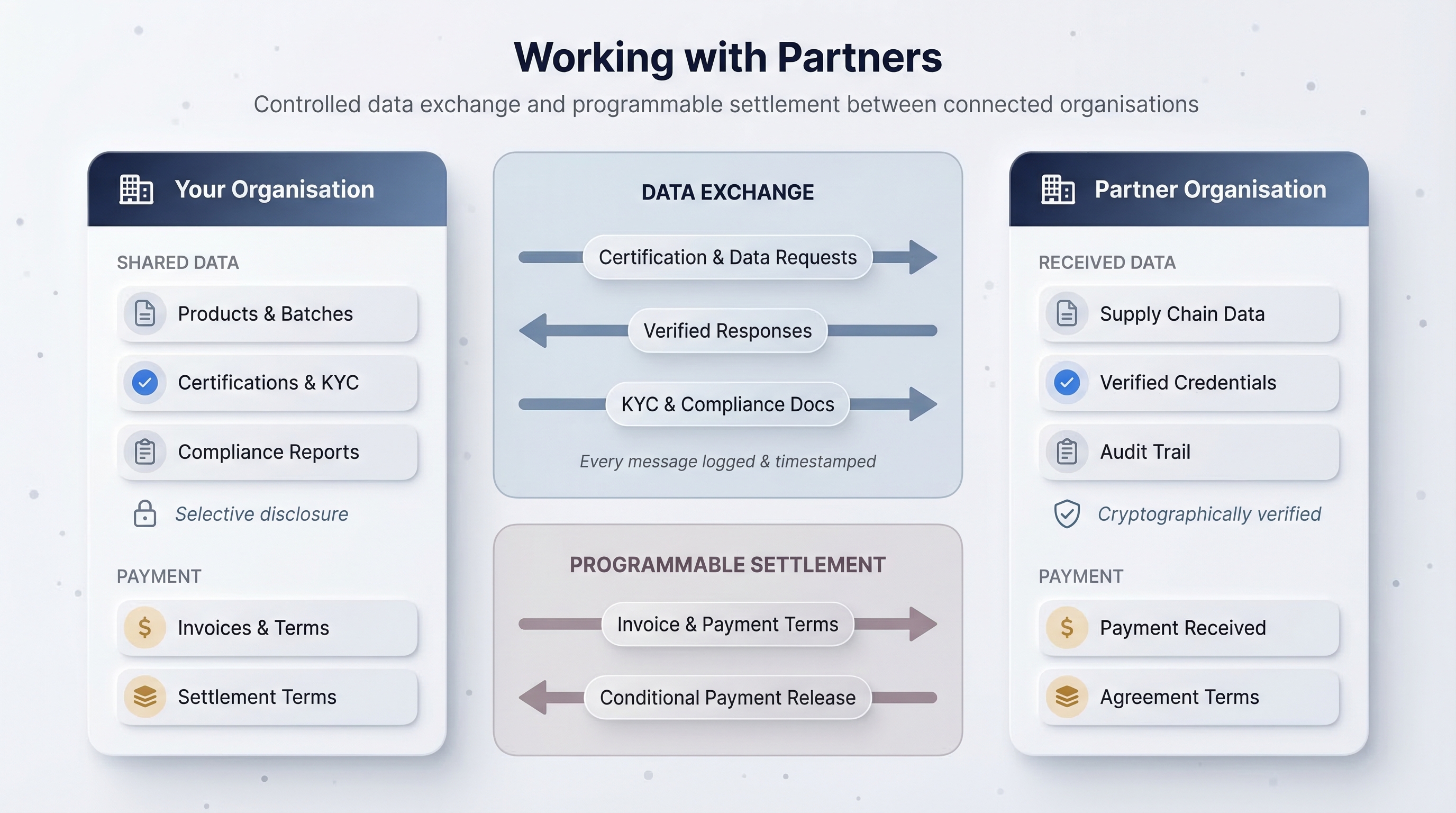
Universal Goods includes a built-in B2B network. Connections let you link your organisation with suppliers, buyers, and service providers to exchange structured data, send invoices, request certifications, and propose agreements.
Invite a partner
- Navigate to Connections (
/connections). - Click New Connection.
- Enter the partner's email address. They do not need an existing account; they will be prompted to create one if they accept.
- Select the partner role that describes their relationship to you:
- Add an optional message explaining why you are connecting.
- Click Send Invitation.
The invitation appears in your partner's Action Center under the Needs Attention tab. They can accept or reject it.
Accept an invitation
When someone invites you to connect:
- Open the Action Center (
/action-center). The Needs Attention tab shows pending invitations. - Click on the invitation to review the partner's organisation details and the role they have proposed.
- Click Accept to establish the connection, or Reject to decline.
Once accepted, the connection appears on both organisations' Connections page and you can begin exchanging messages and proposals.
The Action Center
The Action Center is your inbox for all B2B activity. It has three tabs:
Check the Action Center regularly. Time-sensitive items like certification requests and data requests may have deadlines.
Propose agreements
From a connection's detail page, you can propose formal agreements that govern your relationship:
Payment agreements
- Click Propose Agreement > Payment Terms.
- Configure:
- Chain: the blockchain network for settlement (e.g., LUKSO, or your configured network).
- Asset: the token used for payment (e.g., mUSDC via Bridge Wallet).
- Payment terms: net days, milestone-based, or prepayment.
- Send the proposal. Your partner reviews and accepts or counters.
Data sharing agreements
- Click Propose Agreement > Data Sharing.
- Define which product data sections you will share and at what frequency (on-demand, per-batch, or continuous).
- Send the proposal.
Accepted agreements are recorded on the connection detail page and govern subsequent message exchanges.
Exchange messages
Within an active connection, you can send four types of structured messages:
Invoices
- Click Send Message > Invoice.
- Enter line items, quantities, unit prices, and any applicable taxes.
- Reference a payment agreement if one exists.
- Send. The recipient sees the invoice in their Action Center and can approve or dispute it.
Data requests
- Click Send Message > Data Request.
- Specify which data sections or documents you need from the partner.
- Add a deadline if the request is time-sensitive.
- The partner responds by sharing the requested data directly through the platform.
KYC requests
- Click Send Message > KYC Request.
- Request identity or compliance documentation from the partner (business registration, tax ID, beneficial ownership).
- The partner uploads the requested documents securely through the connection.
Certification requests
- Click Send Message > Certification Request.
- Specify the certification standard (e.g., GOTS, OEKO-TEX, FSC).
- Attach any supporting documentation.
- The partner (typically a Service Provider) reviews, performs their assessment, and responds with the certification result.
All messages exchanged through a connection are logged and timestamped. This creates an auditable trail of your supply-chain communications, which is valuable during compliance reviews or disputes.
Manage the connection lifecycle
Connections are long-lived but not permanent. From the connection detail page you can:
- View history: see all messages, agreements, and status changes in chronological order.
- Update the partner role: if the relationship changes (e.g., a supplier becomes a buyer).
- Deactivate: pause the connection without deleting history.
Next steps
With your partner network in place, you have a complete supply chain on the platform. Learn how to keep everything current and audit-ready in Manage Compliance.