

Quickstart
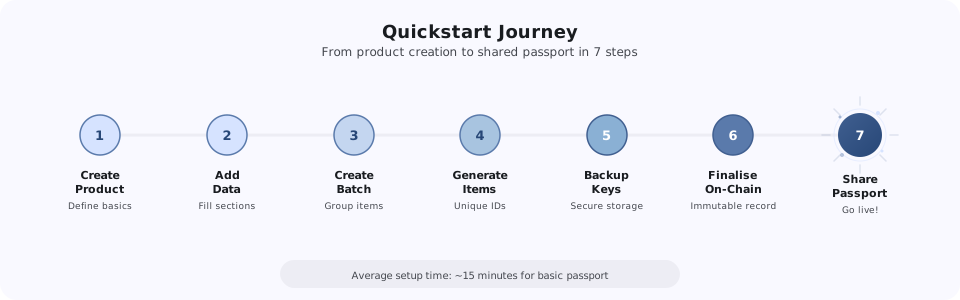
By the end of this guide, you'll have a live Digital Product Passport (DPP) with a QR code anyone can scan to verify your product.
This guide walks you through creating your first product and sharing a verifiable Digital Product Passport.
30-45 minutes for your first passport. Subsequent products go much faster once you are familiar with the workflow.
Prerequisites
- An active Universal Goods account with Organisation Admin access
- Your organisation set up with a Universal Profile (completed during onboarding)
- At least one product image ready to upload
If you have not yet created your organisation, do so during signup. You need an org with an active Universal Profile before you can create products. If you were invited to an existing organisation, confirm that your role includes product management permissions.
Step 1: Create a product
Navigate to Products in the sidebar and click Create Product.
Fill in the product basics:
- Name: The product line name (e.g., "Premium Leather Handbag"). This appears on the passport.
- Description: A brief summary of the product. Keep it factual; this is the official product record, not marketing copy.
- Category: Select the best-fit product category. This determines which data fields are available in the next step.
- Product image: Upload a clear product photo. This is the hero image on the passport.
Click Save to create the product. You are now on the product detail page.
Step 2: Add product data
Open the Data tab to build out the product's full record. Data is organised into structured sections:
- Identification: SKU, GTIN/barcode, model number, brand name, and other identifiers that uniquely identify your product in commercial and regulatory systems.
- Physical Attributes: Dimensions, weight, color, size range, and other physical characteristics.
- Provenance: Country of origin, manufacturing facility, production methods.
- Composition: Material breakdown with percentages (e.g., "75% bovine leather, 15% cotton lining, 10% brass hardware"). Critical for regulatory compliance.
- Circularity: End-of-life instructions: recyclability, disassembly guidance, take-back programs, repair information.
- Documentation: Supporting files such as certifications (ISO, OEKO-TEX), lab test reports, compliance declarations, and care instructions.
Fill in each section relevant to your product. Required fields are marked. At minimum, complete Identification and Composition for a useful passport.
You do not need to complete every section before sharing a passport. Start with the data you have available and add more sections over time. Product and batch data can be updated at any time, and integrity anchors can be refreshed with updated data.
Step 3: Create a batch
Navigate to the Batches tab on your product and click Create Batch.
Enter the batch details:
- Title: A descriptive name for this production run (e.g., "March 2026, Milan Factory").
- UID Prefix: A short prefix for item serial numbers in this batch (e.g., "PLH-2603"). Each item gets this prefix plus a sequential number.
- Description: Optional notes about this production run: facility, conditions, or other batch-specific details.
Click Create to set up the batch. It starts in a draft state.
Step 4: Generate items
Inside your batch, go to the Items tab and click Generate Items.
Enter the quantity of items to create. Each item represents one physical product unit. The platform supports up to 5,000 items per batch.
For each item, the platform creates:
- A unique digital identity on the blockchain — each item receives a DPP minted as an LSP8 token
- A Unique Product Identifier (UPI) embedded in a QR code or NFC tag for physical-to-digital linking
- A private key for verification
- An activation code for consumer passport claiming
Large batches take a few seconds to generate.
Once items are generated, their blockchain identities exist permanently. Generate the correct quantity; you cannot delete individual items from a batch.
Step 5: Back up batch keys
After generating items, you must back up the private keys. Click Backup Keys in the batch toolbar.
You will be prompted to set a backup password. This password encrypts the key file. The platform does not store your backup password. If you lose it, the keys cannot be recovered.
The download is an encrypted file containing the private keys for all items in the batch. Store this file securely:
- Keep it in your organisation's secure storage (password manager, encrypted drive, or HSM)
- Do not email it, upload it to shared drives, or store it unprotected
- Consider keeping a second copy in a different physical location
Private keys prove each item's authenticity. If keys are lost and no backup exists, those items can no longer be verified. Treat key backups with the same care as financial credentials.
Step 6: Finalise batch items on-chain
Navigate to the Tokenisation tab in your batch. This is where you anchor the production records on the blockchain.
Click Finalise Batch Items. This triggers a blockchain transaction that:
- Freezes the item list: no items can be added to or removed from the batch after finalising
- Writes a hash of the batch's current data to the blockchain as an integrity anchor
- Registers each item's on-chain identity under your organisation's Universal Profile
The transaction takes 15-30 seconds to confirm. Once finalised, the batch status changes to Finalised. You can still update batch and product data after finalising, and refresh the integrity anchor with updated data.
After finalising, you will see a transaction hash. You can click it to view the transaction on the block explorer, confirming the on-chain record independently.
Step 7: Share the passport
Go to the Share Passport tab (accessible from the product or batch level). Here you configure what consumers see:
-
Select disclosure sections. Choose which data sections to include in the public passport. You might share Identification, Composition, and Circularity publicly while keeping detailed Provenance data private.
-
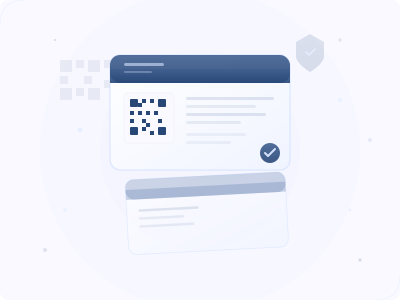
Generate QR codes. The platform generates a unique QR code and shareable link for each item. These can be:
- Printed on product packaging or hang tags
- Embedded in NFC chips
- Included in shipping documentation
- Shared digitally via email or messaging
-
Preview the passport. Click Preview to see exactly what a consumer will see when they scan the code.
What happens next
When a consumer scans the QR code or visits the passport link:
-
They see the product's passport page with the sections you chose to disclose: materials, certifications, provenance, and care instructions.
-
A verification check runs automatically, confirming the data matches the on-chain record and was issued by your organisation.
-
The consumer can optionally claim the passport, associating it with their own profile as proof of owning an authenticated product.
No app download or account creation is needed to view and verify a passport. The entire experience happens in a standard web browser.
Troubleshooting
Next steps
- How It Works: Understand the trust model and verification behind what you just built.
- Connections: Set up partner connections to exchange certifications and compliance data.
- API Reference: Automate product creation and passport sharing through the API.
You've created your first product, issued a batch, tokenised items with on-chain identities, and shared a verifiable Digital Product Passport. From here, explore the Guides for batch management, partner connections, and compliance workflows.